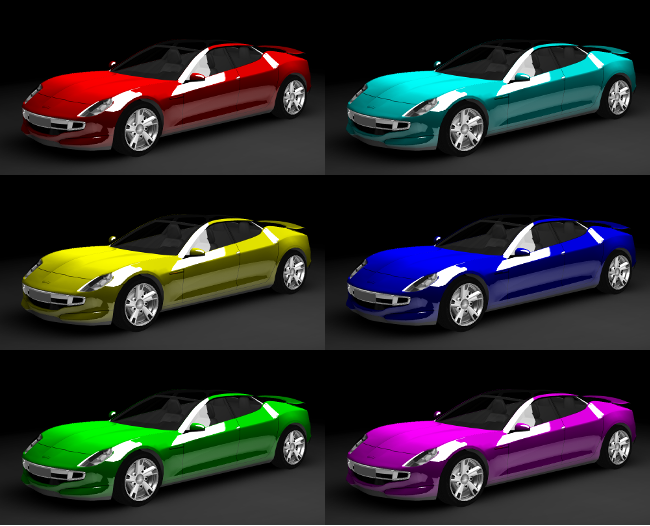
In this final step of the tutorial you change the properties of the MainBody_x1 material to:
Before you start making changes, you can make a copy of your project so that you can easily return to the initial state.
To make a copy of the project select > Save Project As... and select the new name and location for the project.
When you want to change the base color of a material, adjust the Ambient Color color properties of that material. By changing the Ambient Color color properties of a material, you set the color of that material as it is when lights are not present.
To change the ambient color:
| Color | Hue property value |
|---|---|
| Red | 0 |
| Yellow | 42 |
| Green | 85 |
| Cyan | 127 |
| Blue | 170 |
| Magenta | 212 |
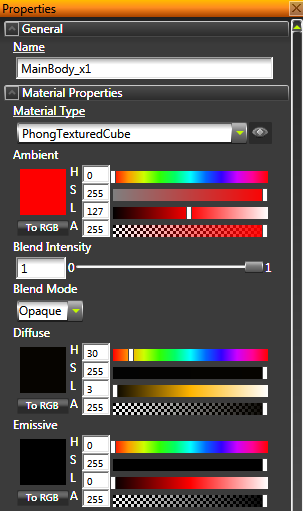
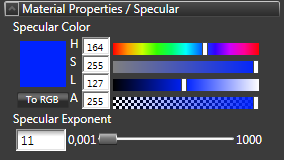
When you want to create a two tone paint effect, first set the ambient color and then set the color of the second paint by adjusting the Specular Color properties of the same material.
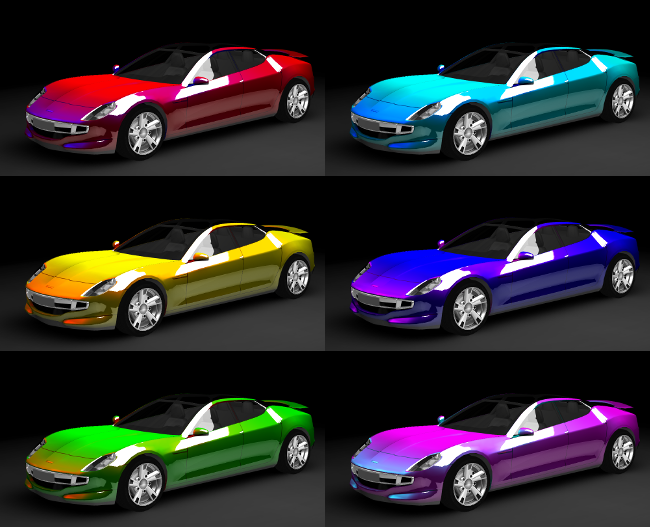
To create the two tone paint effect:
| Second color | Hue property value |
|---|---|
| Red | 0 |
| Yellow | 42 |
| Green | 85 |
| Cyan | 127 |
| Blue | 170 |
| Magenta | 212 |
To learn more about creating Kanzi applications, see Tutorials. The next suggested tutorial is Creating reflections.
To find out more about Kanzi Studio features, see Working with ....
To find out more about rendering, see Rendering.
To find out more about materials, see Material types and materials.
To find out more about textures, see Textures.